
How To Remove The Watermark From An Image On iPhone And Android: Mobile Browser Guide
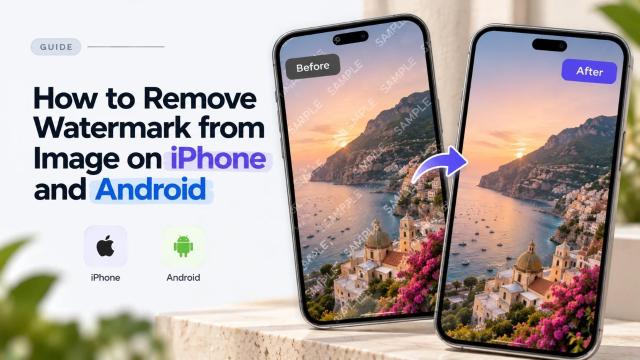
Most watermark removal used to require desktop software — Photoshop, GIMP, or a dedicated editing app installed on a computer. That's changed significantly. Browser-based AI tools now handle watermark removal directly from a phone, with results that match what desktop tools produce, and without any app installation or account signup.
This guide covers how watermark removal works on mobile, what to expect from different watermark types, and the practical workflow for iPhone and Android users.
Why Mobile Watermark Removal Works Now
Two things changed that made mobile-first watermark removal practical: AI processing moved to the cloud, and mobile browsers became capable of handling complex file uploads and previews.
The AI model that reconstructs the image behind a watermark runs on a server, not on your phone. Your phone's job is to upload the image, display the result, and let you download it — none of which requires significant processing power. The same model processes identically whether the request comes from a desktop or a phone.
The practical result is that a browser-based watermark remover on an iPhone 12 produces the same output as the same tool on a MacBook. The limiting factor is your image resolution and network speed, not the device.
Watermark Types You'll Encounter on Mobile
|
Watermark Type |
Typical Source on Mobile |
Removal Approach |
|
App branding in corner |
Screenshot tools, photo editing apps on free tier |
Automatic — corner logos are the simplest case for AI detection |
|
Platform handle + logo strip |
Saved Instagram, TikTok, Pinterest images |
Automatic — consistent placement and shape, reliably detected |
|
Diagonal text overlay |
Stock photo previews saved from browser or app |
Automatic — trained pattern, handles well on mobile-resolution images |
|
Date/time stamp |
Phone camera auto-stamp feature, some screenshot tools |
Automatic for standard placements; manual brush if unusual position |
|
Editing app export watermark |
Canva free, CapCut, Lightroom mobile free |
Automatic — predictable corner or bottom placement |
|
Downloaded image with embedded logo |
Images shared via messaging apps or social DMs |
Depends on placement — corner logos automatic, centered logos may need brush |
Step-by-Step: Removing a Watermark on iPhone
- Step 1 — Open Safari or Chrome on your iPhone and go to the watermark remover. A browser-based tool requires no app download and works in any mobile browser.
- Step 2 — Tap the upload area. Your iPhone's photo picker opens. Select the image from your Photos library, Files app, or a recent download. The tool accepts JPG, PNG, and WEBP.
- Step 3 — Wait for automatic processing. The AI model detects and removes the watermark automatically. For corner logos and strip watermarks, this takes a few seconds.
- Step 4 — Review the result. Pinch to zoom in on the area where the watermark was and check the reconstruction. On an iPhone screen at native resolution, you can see the quality of the removal clearly.
- Step 5 — Use the brush if needed. If any part of the watermark remains, tap the brush tool, paint over the residual marks, and reprocess. The touch interface works naturally for this — tracing over a watermark with your finger is more intuitive than using a mouse.
- Step 6 — Download. Tap the download button and the cleaned image saves to your Photos library or Downloads folder. From there you can share it directly, AirDrop it, or upload it wherever you need it.
Step-by-Step: Removing a Watermark on Android
- Step 1 — Open Chrome or your default browser and go to the watermark remover. No Play Store installation needed.
- Step 2 — Tap the upload area and select your image. Android's file picker lets you access Photos, Google Drive, Downloads, and other storage locations directly from the browser.
- Step 3 — Automatic processing runs. The AI detects the watermark and removes it. Processing time is the same as on desktop — typically a few seconds for standard watermark placements.
- Step 4 — Check the output. Zoom in with a pinch gesture on the area where the watermark was. The reconstruction should be seamless with the surrounding background.
- Step 5 — Manual brush if needed. Tap the brush, paint over any remaining marks, reprocess. Android's touch input works well for precise brush selection on small watermark areas.
- Step 6 — Download and use. The cleaned image downloads to your Downloads folder or opens in your gallery, ready to share or upload.
To remove watermark from image on any device without installing an app, Phototune free watermark remover works directly in the mobile browser — upload, process, download, no account required.
Mobile-Specific Considerations
- Image resolution — photos taken on a modern iPhone or Android flagship are high resolution (12–50MP). This is actually an advantage for AI removal: more pixels give the model more context for reconstruction. Upload the original from your camera roll, not a compressed version shared via messaging.
- File size limits — very large RAW or HEIC files may need to be converted to JPEG before upload, depending on the tool. Most browser-based tools accept JPEG and PNG natively; HEIC support varies.
- Network speed — uploading a large image on a slow mobile connection takes longer. If you're on 4G or a weak WiFi signal, the upload step is where you'll notice it, not the processing.
- Screenshots vs. photos — screenshots taken on your phone are typically lower resolution than camera photos (screen resolution, not sensor resolution). They're still processed correctly, but the output file will be at screen resolution.
- Saving to the right place — on iOS, downloaded files go to the Files app's Downloads folder by default; tap 'Save Image' in the share sheet to send it to Photos. On Android, the file goes to the Downloads folder in your file manager.
Comparison: Mobile Browser vs. Desktop for Watermark Removal
|
Factor |
Mobile Browser |
Desktop Browser |
|
AI processing quality |
Identical — model runs on server, not device |
Identical |
|
Upload speed |
Depends on mobile data / WiFi |
Usually faster on home broadband |
|
Manual brush precision |
Touch input — intuitive for tracing |
Mouse — more precise for small areas |
|
File management after download |
Saves to Photos or Downloads |
Saves to Downloads folder, easy to move |
|
Convenience |
Process images from anywhere, immediately |
Better for batch workflows or large files |